
All Dashboards allow you to design your own dashboards based on different analytics to provide an overview of Logpoint data. It displays data for a specified period of time and includes dashboards designed for different user roles. All Dashboards aggregates widgets from various sources so you can group different widgets to view their data. The created, imported, cloned, and used dashboards are automatically shared with the users in the Logpoint Administrator user group. It creates an overview of data to monitor regularly, enabling you to react faster to information.
You can create a dashboard to display the widget’s information. They are automatically shared with the users in the Logpoint Administrator user group.
Go to Dashboard from the navigation bar.
Click on All Dashboards.
Click +.
Enter the Dashboard Name. You can also select dashboards from list in the left.
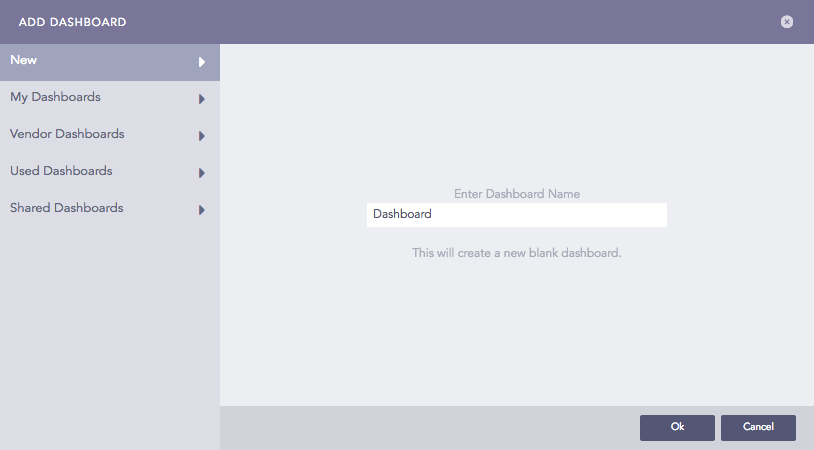
Adding a Dashboard
Click Ok.
All Dashboards list all the dashboards created in Logpoint and display the information of the widgets in each dashboard.
At the top left, you can switch among My Dashboards, Used Dashboards, Vendor Dashboards and Shared Dashboards from the drop-down.
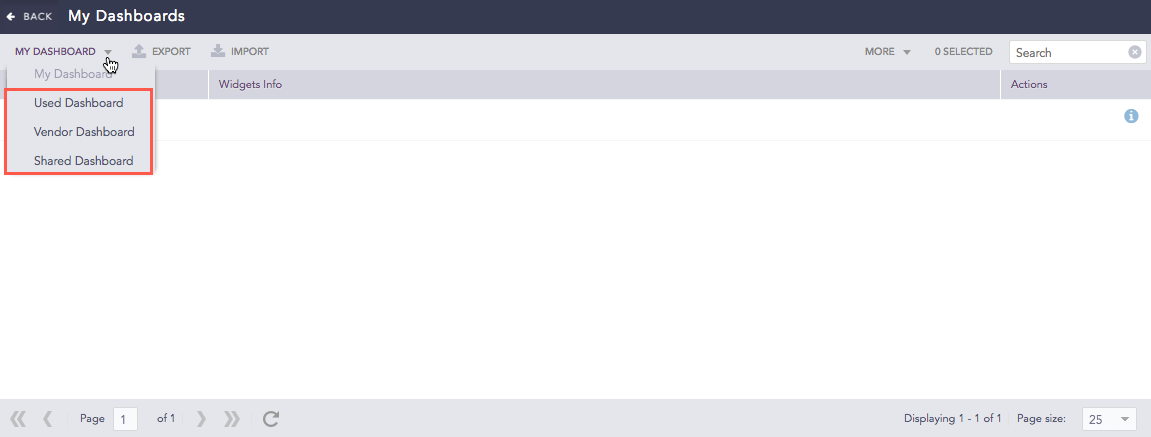
My Dashboards: A personalized space where Logpoint users can create, customize, and manage their own dashboards tailored to display the specific analytics and data insights they need.
Used Dashboards: Dashboards that Logpoint users have accessed and interacted with.
Shared Dashboards: Dashboards that are accessible to multiple Logpoint users. Click the Use icon from Actions to use it.
Vendor Dashboards: The Pre-built dashboards provided by Logpoint. Click the Use icon from Actions to use it. Click the Clone icon make a copy of the dashboard where you can apply changes.